
Go to main content
ChiropracticAnswering Service

Chiropractic Answering Service That Books Patient Visits

Our chiropractic answering service answers as your business, books appointments, and takes messages while your team cares for patients. Try a fictional patient call in the browser demo, then hear how the details reach your front desk.

Give new patients a place to book and existing patients a way to reach your team, day or night.

Talk to the receptionist Request your free trial

Free trial on request: 14 days, up to 100 minutes.PrivacySecurity

A chiropractor at a treatment table with a patient sitting up and smiling

Keep patient calls moving while your front desk is busy

Your receptionist answers forwarded calls during treatment blocks, lunch, busy periods, and after hours. It gives callers a next step while your staff finishes helping the person in front of them.

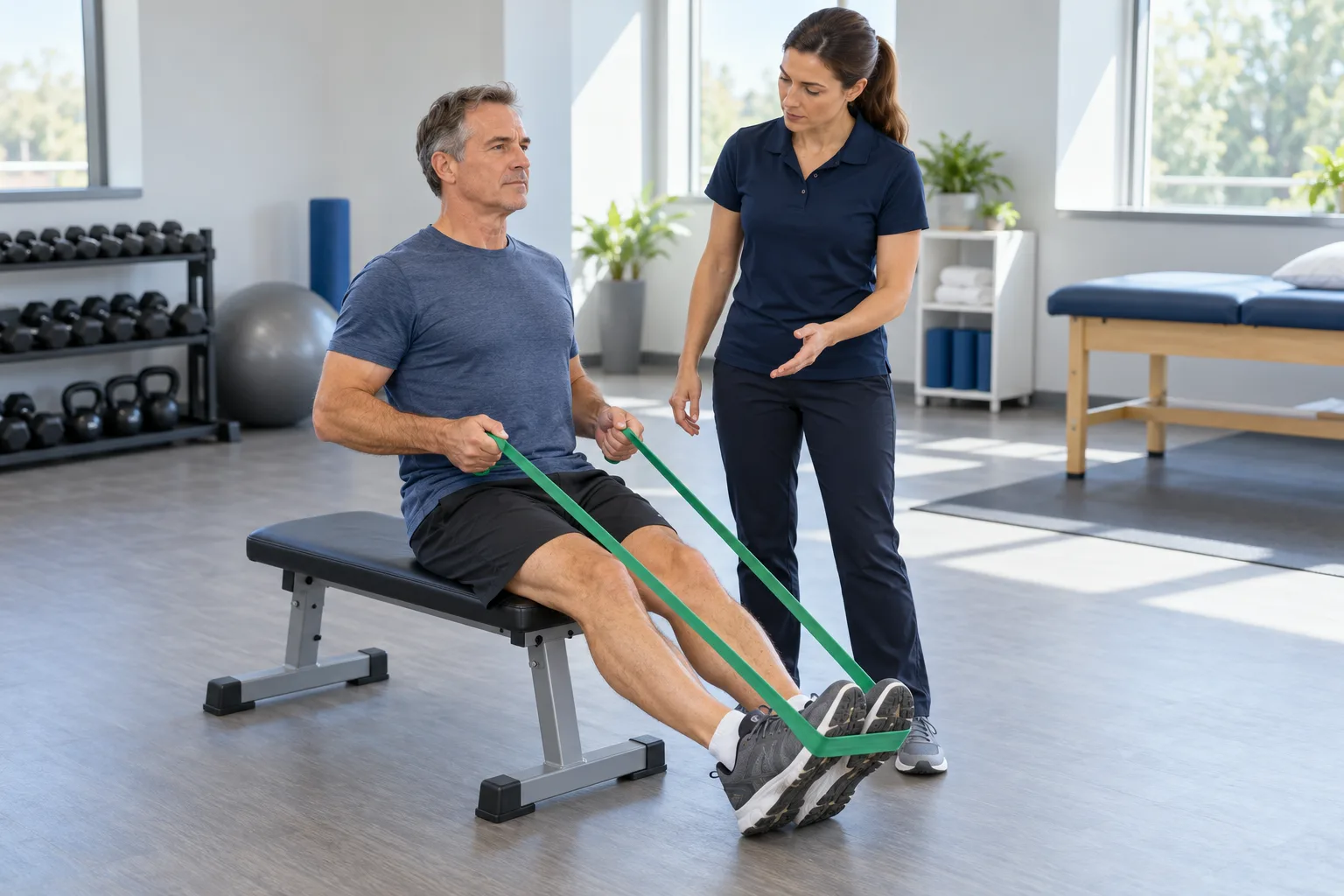
A physical therapist guiding a patient through a resistance-band exercise in a bright clinic
  • During appointments

    Take new-patient details while your staff supports patients already in the office.

  • Over lunch

    Give callers a booking option or take a message for your team's return.

  • After closing

    Capture appointment requests and send urgent messages through your chosen contact order.

See the details

A missed new-patient call can leave your team without the details needed to offer an appointment. A rescheduling message left until morning can also add another task to an already full front-desk queue. Your chiropractor answering service gives those callers a way to explain what they need when your team cannot pick up.

For a fictional example, Jordan calls during the lunch break to ask about a first visit. Your receptionist asks for the booking details, offers an appointment in Google Calendar, or records a callback request according to your preference. You choose which calls forward: all calls, unanswered calls, busy calls, or calls outside office hours. Your team can start with the summary when it returns.

Collect booking details and route clinical questions to your team

Your AI receptionist asks intake questions, records the caller's request, and follows your routing instructions. It notes insurance questions for staff and sends clinical questions to your on-call clinician.

  • New-patient intake

    Ask the questions you set and collect the details needed for booking.

  • Insurance questions

    Note the caller's benefits question so your front desk can follow up.

  • Urgent contact

    Alert your on-call person and offer a warm transfer using your contact order.

See the details

We build your receptionist's instructions from your onboarding answers and website. You tell it which services you offer, which questions to ask, and who should receive urgent calls. Each greeting says the caller is speaking with a virtual assistant and that the call is recorded.

For a fictional patient calling about soreness after a visit, it takes a message and routes the clinical question to your on-call clinician. It does not diagnose, recommend exercises, or make clinical triage decisions. The safety script directs red-flag symptom calls to urgent care or 911 first, then alerts your office. Insurance questions become front-desk messages, without a claim that coverage has been verified.

Try patient calls in the browser demo below

The browser demo lets you test fictional patient calls without signing up. Listen for the disclosure, the intake questions, the next step offered, and the message prepared for the office.

Pretend business (fictional): Riverbend Chiropractic and PT

First pick a call, then press Speak with it.

Demo dataBooked11:05 a.m.

New call for Riverbend Chiropractic and PT

New-patient booking.

Booked: Thursday, 9 to 11 a.m. (example time). The confirmation is in the summary.

Transcript excerpt (example)

  1. Assistant Thank you for calling Riverbend Chiropractic and PT. I am a virtual assistant, and this call is recorded. How can I help you?
  2. Caller Tells the assistant: new-patient booking.
  3. Assistant What day works best for you? I have Thursday morning open.

Open the dashboard for the full transcript and recording.

What the owner receives after a call like this (example).

  • Ask to book

    Hear which details the receptionist collects for a fictional first appointment.

  • Ask about benefits

    Check that insurance questions are saved for your front desk to answer.

  • Test urgent wording

    Listen for the safety script and the alert prepared for your office.

See the details

Use the demo below as a rehearsal for the calls your front desk handles. All patients and the demo practice are fictional. Start with a new-patient booking, then try rescheduling a care-plan visit or asking about a physical therapy referral.

For the insurance scenario, listen for a clear handoff to staff rather than an answer about coverage. For a post-visit soreness call, check that the receptionist collects a message for the clinician without offering treatment advice. The numbness or loss-of-bladder-control scenario demonstrates the urgent care or 911 safety script and office alert. Open the full patient-call demo to explore the scenarios and inspect the summary after speaking.

Forward your calls, then receive messages and bookings

You keep your business number and forward the calls you want us to answer. Your receptionist answers as your practice, then sends call details by email and app push notification.

  • Choose forwarding

    Send all calls or only those your front desk cannot answer.

  • Answer as your practice

    Use your services, office hours, intake questions, and routing instructions.

  • Review the result

    Get a summary, urgency tag, transcript, and recording after the call.

See the details

We provide a local number and a forwarding guide for your carrier or phone system. After the onboarding chat, make a test call to check the greeting, booking instructions, and urgent contact order. Forwarding goes live after you add a card.

Once calls forward, your receptionist can answer day and night. It books into Google Calendar or takes appointment details for your callback, depending on how you want your front desk to work. Urgent calls can reach your on-call person by warm transfer, with a short summary before they press 1 to accept, or by a page. Your dashboard holds the call history, and a daily email digest helps you review the day's messages.

Sample dashboard with invented calls

Compare AI answering, live receptionists, and voicemail

AI answering, live receptionists, and voicemail offer different ways to handle patient calls. Choose around booking needs, the judgment you expect during conversations, and the callback work your staff can take on.

  • AI receptionist

    Collect structured messages, offer bookings, and follow the call instructions you provide.

  • Live receptionist

    Put a person in the conversation when human judgment matters to your practice.

  • Voicemail

    Let callers leave a recording for staff to review and return later.

See the details

Our AI receptionist suits repeatable front-desk tasks: asking intake questions, taking messages, booking available appointments, and following your contact order. You can hear those tasks in the demo and judge the conversation yourself. It can make mistakes, so reviewing summaries remains part of your team's work.

A live answering service offers a person who can respond with human judgment during the conversation. That may matter when callers need a more flexible discussion. Voicemail offers a familiar way to leave a message, while your staff handles the conversation and scheduling later. For chiropractic and physical therapy practices, the useful comparison is which tasks you want handled on the first call and which should stay with your team.

Compare call costs and see our monthly plan

Our plan is $399 per month with 500 AI minutes included and $0.20 per extra minute. Compare the conversation handled and the staff follow-up left behind, alongside the bill.

  • Included allowance

    Start with 500 AI minutes as part of your monthly plan.

  • Extra usage

    Allow for $0.20 per extra minute when calls exceed the included allowance.

  • Work after calls

    Consider how much booking and callback work still reaches your front desk.

See the details

To compare the cost of handling one patient call, consider both the charge and what happens afterward. With our plan, usage is expressed in AI minutes, so a longer conversation uses more of the allowance than a shorter one. The dashboard shows usage for review.

For a live service, examine its quoted plan, what a billable interaction means, and which tasks it includes. For voicemail, consider the staff time needed to hear a message, return the call, and arrange the visit. These questions give you a useful comparison without assuming that the options complete the same work. See plan and trial details for our allowance, extra-minute rate, and cancellation terms.

Single plan

$399 monthly

  • 500 AI call minutes included
  • $0.20 per extra minute
  • Free trial on request: 14 days, up to 100 minutes
  • Pay month to month and cancel online

Case-study price: $199 per month, locked for 12 months, for 10 businesses that agree to a short case study about their results.

Request your free trial

Extras

  • Website chatOptional
  • Lead follow-up callsOptional

Use call summaries alongside your practice software

Your staff can enter call summaries into the software your practice already uses. Direct practice-management connections are not live; Google Calendar booking is available when that fits your scheduling process.

  • Keep your workflow

    Review the caller's request before entering details into your practice records.

  • Book in Google Calendar

    Offer appointments there when you choose that booking workflow.

  • Request a callback

    Have the receptionist collect scheduling details for your front desk instead.

See the details

If your office uses ChiroTouch, Jane, WebPT, Prompt, ChiroFusion, or Raintree, plan for your team to enter the relevant call details. An email summary gives staff a starting point for the callback or appointment request. The transcript and recording are available when staff need to check the conversation.

Choose Google Calendar booking if you want your receptionist to place appointments there. Choose callback intake if your team should confirm the visit inside your existing scheduling process. We plan direct connections according to demand, without promising a launch date for a particular product. Read the current software connection status when deciding how call handling will fit your office.

Set your instructions and test before forwarding patient calls

Setup starts with an onboarding chat about your practice and a test call before launch. You supply the office rules, check the response, and choose when your existing number forwards.

  • Describe your practice

    Answer onboarding questions about services, hours, price policy, and urgent contacts.

  • Make a test call

    Check the greeting, intake details, appointment handling, and on-call routing.

  • Adjust in plain words

    Tell the AI which settings need to change in your dashboard.

See the details

The onboarding chat asks 10 to 15 questions and uses your website to learn the business. Include services you do not offer, your office hours, how you discuss prices, and which person should receive urgent calls. Give clear instructions for appointments and for insurance questions that staff must answer.

Next, test with fictional caller details. Try a booking request, a benefits question, and a message for your clinician. Check that the summary gives staff enough information to act and that the contact order matches your instructions. You can change settings by telling the AI in plain words. Review our setup and forwarding steps before requesting a free trial.

Ask these questions before choosing an answering service

Ask any provider to demonstrate its greeting, booking process, urgent-call routing, and message delivery. Check what staff must still handle and how the service deals with a question outside its instructions.

  • Hear the greeting

    Ask how callers learn they are speaking with AI and being recorded.

  • Test the handoff

    Find out who receives clinical questions and how urgent contacts are reached.

  • Inspect the message

    Check which details staff receive and how they review the original conversation.

See the details

Choose an answering service for chiropractors by testing calls that matter to your office. Ask for a fictional new-patient booking, an insurance question, and a post-visit message. A booking demonstration should show where the appointment lands and what your staff needs to do next.

Ask providers to explain their healthcare data position and what happens when a caller asks for clinical advice. Our healthcare status is the pending status (no business associate agreement is in place). Also ask about recording retention, cancellation, and the backup route if service stops. With us, email and app push deliver call alerts, and your team can review the transcript and recording. Start with the receptionist conversation demo and inspect the result yourself.

Common questions

Can I keep my current practice phone number?

Yes, you keep your current business number and choose which calls forward to the local number we provide. Send all calls, unanswered calls, busy calls, or after-hours calls. We provide a forwarding guide for your carrier or phone system, and you make a test call before going live.

Can the receptionist book into my schedule?

Your receptionist can book appointments into Google Calendar. If your front desk needs to confirm appointments in another system, choose callback intake instead. The receptionist takes the scheduling details and sends a summary so your team can arrange the visit through its usual process.

Will it answer insurance and benefits questions?

It records insurance and benefits questions for your front desk rather than verifying coverage. A fictional caller might ask whether a particular visit is covered; your receptionist notes the request for staff to answer. You can test that conversation and review what the office receives in the demo.

What happens when a patient calls about pain after a visit?

Your receptionist takes a message and routes the clinical question to your on-call clinician using your instructions. It does not diagnose or suggest treatment. For red-flag symptom wording, the safety script sends the caller to urgent care or 911 first, then alerts your office.

Will patients know they are speaking with AI?

Yes, at the beginning of the call, your receptionist says it is a virtual assistant and that the call is recorded. These notices stay on. Try the browser demo to hear the greeting and decide how the conversation fits your practice's approach to patient calls.

How do call messages reach my front desk?

You receive an email and app push notification for each call, with a summary, urgency tag, transcript, and recording. A daily digest email helps you review messages together. You can also open the dashboard to see calls and check the details before following up.

Can urgent calls transfer to our on-call clinician?

You can set urgent calls to reach your on-call person by warm transfer or a page, following your chosen order. For a warm transfer, the person hears a short summary and presses 1 to accept. Clinical questions go to the clinician; the receptionist does not make clinical decisions.

Does the receptionist speak Spanish?

Your receptionist speaks English and Spanish, and callers can switch languages during a call. Your office's instructions still guide booking, message taking, and routing. Try a fictional Spanish-language appointment request in the demo and inspect whether the resulting message gives your staff the details it needs.

Can it take a physical therapy referral call?

Yes. It can collect a fictional referral caller's request and the intake details you instruct it to ask for, then prepare a message for staff. Your team handles the referral's clinical questions and any insurance questions. Try the physical therapy referral scenario to hear that handoff.

Can I try the receptionist before paying?

The browser demo needs no signup and lets you try fictional patient calls. Request a free trial to test your setup for 14 days, capped at 100 minutes; we'll email your sign-in link when ready. A card will be required before forwarding goes live, and you will be able to cancel online.

Try a patient call with your AI receptionist

Start with a fictional booking or insurance question in the demo. Review the office message, then request a free trial; we'll email your sign-in link when ready.

Try a new-patient call Request your free trial